Best VPN for PC in 2026: Windows Security, Speed & Features Compared
Theo Brennan
6 November 2026
Your Windows PC is chatty before you even sit down. Updates download, cloud folders sync and background apps phone home while you pour your morning coffee. A good VPN has to handle all of that quietly, without slowing games, breaking work tools or leaving gaps. This guide tests the idea against Windows reality: practical security settings, honest speed habits and features that earn their keep for Korean users in 2026.
Choose a VPN that reconnects after sleep, restarts and Wi-Fi changes; laptops rarely stay put.
Tools Over Hype
Judge features by whether you use them weekly, not by how impressive the list looks.
Locking Down Your Windows Desktop
Desktop PCs store tax files, work documents, saved passwords and game libraries. Protection therefore needs to go beyond hiding an IP address and cover leaks, sudden failures and unwanted tracking.
Leak-Proof Encryption
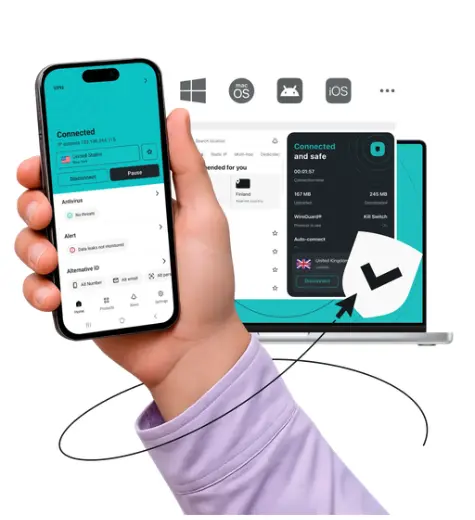
Surfshark’s Windows app supports WireGuard, OpenVPN and IKEv2, using AES-256-GCM or ChaCha20, and adds DNS, WebRTC and IPv6 leak protection so your genuine address stays hidden during everyday online browsing.
A kill switch blocks traffic when the tunnel drops. Soft mode lets you reconnect, while strict mode keeps everything offline until protection returns, which suits sensitive banking or work sessions.
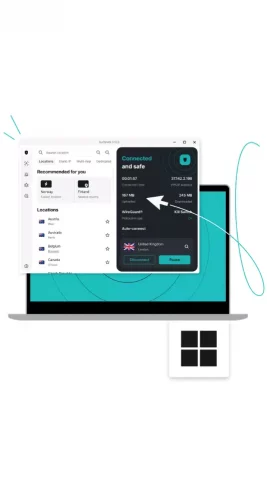
Bypasser, the split tunneling tool, lets chosen apps skip the VPN. Local banking software, printers or finicky games can use your normal connection while browsers and downloads remain fully protected.
Speed complaints about VPNs are usually complaints about distance and congestion. Surfshark lists 4,500+ servers in 100 countries, including Seoul, so Korean users can keep routes short. Start with WireGuard, then experiment with other protocols if a network blocks it. Run quick tests at lunchtime and late evening, because the same server can feel completely different across the whole day.
Nearby Server Logic
Pick Seoul for Korean sites, banking and online games; choose other regions only when needed.
Quick Comparison Tools
A built-in speed test compares locations quickly, saving you from juggling several separate benchmarking websites.
From Download to First Connection
Getting started takes minutes, yet three early decisions shape how smoothly everything runs afterwards. Choose a protocol, switch on protection against drops, and decide which apps should skip the tunnel.
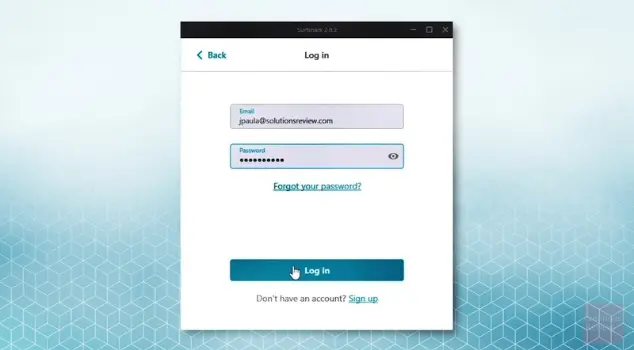
Surfshark’s installer needs administrator rights; download it only from the official site to avoid imitators.
Chrome, Firefox and Edge extensions cover browsing alone when you do not need full-device protection.
Switch on auto-connect for public hotspots
Set the kill switch to strict
Add trusted local apps to Bypasser
Finish with an IP leak test
Extras Worth Having, Extras to Skip
CleanWeb for ads and trackers, Multi Hop for extra routing and obfuscated servers for restrictive networks are genuinely handy. Antivirus, alerts and data removal sit in higher plans, so buy them only if they replace tools you already pay for.
Who Benefits Most
Each type of Windows user leans heavily on different features
If you remember one thing, remember that the best Windows VPN is the one you will leave switched on. Surfshark covers the essentials: WireGuard, leak protection, a strict kill switch, split tunneling and a Seoul location, all under one subscription for unlimited devices. Pair that with sensible habits, such as testing servers at different hours and checking renewal prices, and the protection fades into the background. Use the thirty-day guarantee to confirm it suits your internet line, your games and your workflow, then settle in. Good security should feel genuinely boring, quiet and reliable every single day of the year.